
You can scrape a website without coding by using a browser extension or a visual no-code scraper: you open the page, point at the fields you want, and export the results as a CSV or spreadsheet. Most beginners finish their first collection in under half an hour, and the whole process costs nothing.
The catch is that scraping is only the easy half of the job. What usually trips people up is picking a method before checking whether the data is collectable, then trusting the first export instead of checking it. This guide walks through the whole sequence: permission, fields, method, selectors, test, export, validation.
Updated October 2026
Table of Contents
- What You Need
- How to Scrape a Website Without Coding Step by Step
- 1. Check That You Are Allowed to Collect the Data
- 2. Define the Exact Information You Need
- 3. Inspect the Page in Your Browser
- 4. Choose the Simplest No-Code Method
- 5. Configure the Scraper Selectors
- 6. Run a Small Test Collection
- 7. Export and Clean the Results
- 8. Validate and Document the Dataset
- Common Mistakes to Avoid (and the Fix for Each)
- Frequently Asked Questions
- Conclusion
What You Need
You need four things before you collect a single row, and all four are free.
- A browser you already use. Chrome, Edge, Firefox and Safari all ship the developer tools this guide relies on. Menu labels move between versions and platforms, so expect the words to differ slightly from what you see here.
- A no-code scraper or extension. For a single page, a free browser extension is enough. For hundreds of pages or recurring runs, you will want a visual scraper or an automation platform later.
- A spreadsheet. Google Sheets or Excel. This is where the scraped values land and where you will notice what is wrong with them.
- A project folder. One folder holding the page snapshots, the raw export, the cleaned file, and a short notes file. You will thank yourself when the site redesigns in March.
- A written permission check. A few minutes reading robots.txt and the terms of use, with a note in your project folder saying what you found.
Skip the last one and everything else becomes risk you did not need to take. A permission note takes five minutes; the alternative is not worth it.
How to Scrape a Website Without Coding Step by Step
1. Check That You Are Allowed to Collect the Data
Most sites publish a robots.txt file that states which paths automated tools should skip. Open example.com/robots.txt in your browser and read it before anything else. It is plain text, and the sections are labelled by user agent, so you can find the one that applies to scrapers.
Then read the terms of use and any copyright notice on the site. Terms of use usually cover what you may republish and whether automated access is permitted at all. Publicly visible does not mean free to republish, and it never means free to collect personal data.
Three lines separate permitted work from work to avoid: publicly visible pages with no stated restriction, pages behind a login, and anything involving personal data about identifiable people. The first is usually workable with care. The second needs you to have legitimate access, and the third raises obligations that have nothing to do with tooling. Note the outcome of your check in writing, even if the note is one line.
If the answer turns out to be unclear, the site often publishes an API or a data download. Those are faster, cleaner and always the better path when they exist.
2. Define the Exact Information You Need
“Get all the data” is not a collection brief, because it produces a messy export with twelve columns you will never use. Write down the specific fields first: title, publication date, URL, category, author name.
Add four more lines to that brief: the date range, roughly how many records you expect, which sources are acceptable, and what the data will be used for. That last one shapes everything else, because a dataset for internal analysis and a dataset you publish need different levels of care around sources and dates.
Six lines on paper saves an hour of extracting fields you did not need. It also gives you something to check the final export against.
3. Inspect the Page in Your Browser
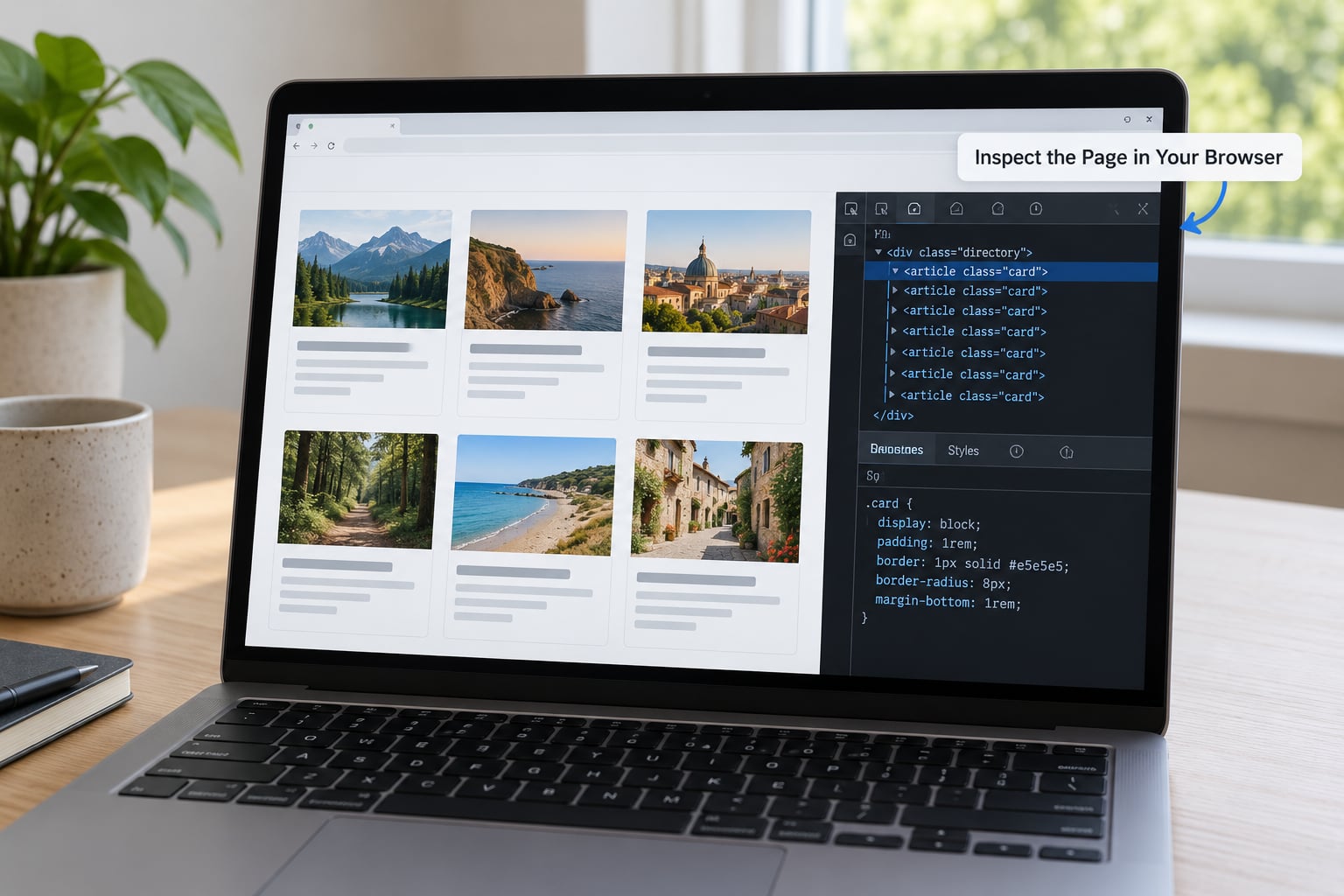
Before pointing at anything, look at how the page is built. Right-click on the page and choose Inspect, which opens the developer tools panel, and check whether the repeated items sit inside a list element such as an ordered or unordered list container.
Menu locations shift between browser versions, so look for the Elements tab in the developer tools rather than relying on an exact path. A list container means you have a repeating pattern you can loop over. A flat pile of unrelated blocks means every item may need its own settings.
Also scroll the page and watch when new items appear. Items that load as you scroll are a different problem from items already present in the page, and that difference decides which method you pick in the next step. If content appears only after a click, such as a Load more button or a dropdown, note that too.
4. Choose the Simplest No-Code Method
Most beginners start with the most powerful option and give up when the setup is harder than the task. Work down this list instead, and stop at the first method that can reliably finish the job.
- An official export or data download. Always check first. It is free, fast and clean.
- An RSS feed. Worth checking on news sites, blogs and anything with a feed, though feeds rarely carry everything you need.
- Manual copy and paste. Genuinely fine under roughly twenty records. It takes minutes, not hours, and the data is accurate because you selected it.
- A spreadsheet import. Many sites offer a CSV or Excel export of a filtered view, which beats scraping the page that renders it.
- A browser extension. The best no-code option for one page of repeated items. You click the fields, it writes the rows.
- A visual no-code scraper. A desktop or cloud tool with selectors, pagination handling and scheduled runs. This is the step up when a single page is not enough.
- An automation platform. Zapier, Make or n8n style tools, where a scrape runs on a schedule and writes straight into a spreadsheet or database. Worth setting up only once the extraction itself already works by hand.
The decision mostly comes down to page type:
| Page type | Start with |
|---|---|
| Static list or directory | Browser extension |
| Table already on the page | Copy-paste, then a spreadsheet |
| Repeating items revealed by scrolling | Visual scraper with a scroll step |
| Paginated across numbered pages | Visual scraper with pagination |
| JavaScript-rendered app or infinite scroll | Visual scraper or a rendering service |
| Behind a login you are authorised to use | Visual scraper, slowly, staying inside your access |
| Entire site, thousands of pages | Feed the sitemap URL into a visual scraper |
| Protected by bot detection or a CAPTCHA | Stop and ask the site for data access |
That last row is not a challenge to route around. Bot protection is a clear signal, and treating it as an obstacle to defeat is both a bad idea and usually a breach of the terms you agreed to.
5. Configure the Scraper Selectors
Most visual scrapers work with the same handful of settings, even though the labels differ. Look for the equivalent of a start URL, a list selector that identifies the repeated container, and a set of field selectors for each column you need.
Set the list selector first and preview. If the preview shows every repeated item exactly once, the list selector is right. If it shows zero rows, the container is wrong. If it shows one giant row containing the whole page, your selector is too broad.
Then add field selectors one at a time. Most tools offer point-and-click selection, where clicking an element creates the selector for you, and a preview of the extracted value appears beside it. Check that preview each time. A title field that is capturing the whole card, or a date field returning the current year, is far easier to fix now than after the export.
Finally set the limits: how many pages, how many rows per page, and how long to wait between page loads. Set the delay higher than the page needs rather than lower. Then check whether the tool offers a pagination setting, and point it at the next-page control or the page-number pattern.
6. Run a Small Test Collection
Run five to ten records first, not the whole site. Open each extracted row and compare every field against the source page, because the failures are specific and worth naming: a missing field, a duplicated row, values shifted one column left, dates in a format you cannot sort, and trailing whitespace inside text.
Fix the selectors and run the test again. Repeat until ten clean rows come back. Scaling a broken scrape only produces a broken dataset faster.
7. Export and Clean the Results
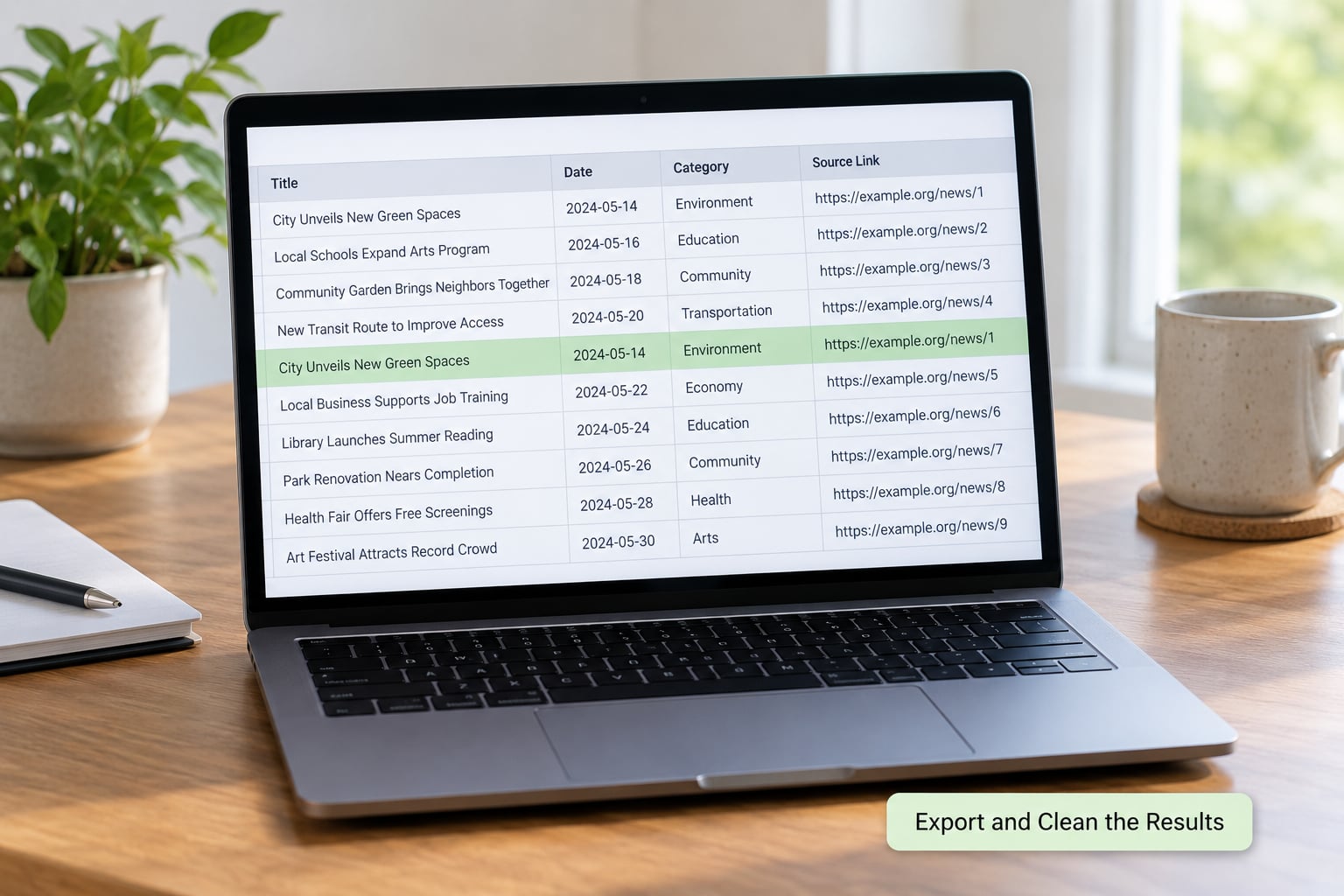
Export to CSV, which every spreadsheet opens and every database imports. JSON is worth it when the data is nested or when another tool will read it. Google Sheets is the right destination when you want the data to refresh on a schedule, and Airtable or similar databases suit records with more fields than a spreadsheet handles well.
Whatever the format, keep two columns that a scraper does not give you by default: the source URL for every record, and the date you collected it. Without those you cannot verify a figure later or explain why a number changed.
The cleanup is about five minutes of work. Remove empty rows, find duplicates, trim stray whitespace, and normalise the date column into one format so it sorts properly. Check category and status columns for inconsistent spellings, because scraped text inherits whatever typo was on the page.
8. Validate and Document the Dataset
Pull a few records from the beginning, middle and end of the collection, plus one from the oldest date, and check them against the source pages. Then count your rows and compare that total against what you expected. A shortfall usually means pagination stopped early, and it is much easier to catch now than in the final write-up.
Write a short note alongside the file: where the data came from, when it was collected, which pages were skipped, what transformations you applied, and which fields proved unreliable. If you plan to publish anything, also save a snapshot of the page so your records can be checked later.
That note takes five minutes and it is the difference between a dataset you can stand behind and one you have to take on faith.
Common Mistakes to Avoid (and the Fix for Each)
| Mistake | Fix |
|---|---|
| Starting before checking permissions | Read robots.txt and the terms of use first, and note the result |
| Pickling on the most powerful tool | Check for an export or feed, then manual copy-paste, then move up only as far as needed |
| Selectors that are too broad or too narrow | Set the list selector first, check the preview, then add fields one at a time |
| Empty output on a JavaScript-rendered page | The tool read the page before scripts ran. Use a scraper that waits for the content to appear |
| Only the first screen of results | Infinite scroll needs a scroll step; Load more buttons need a click step |
| Ignoring pagination | Set the next-page control or the page-number pattern and confirm the row count grows |
| Requesting too many pages too fast | Raise the delay between loads and cut the scope instead of forcing it |
| Losing the source URLs | Add a URL column before you export, not after |
| Keeping personal data you do not need | Drop the field. If a name is needed for a published story, check why |
| Trusting the first export | Test ten rows against the source page before scaling up |
| Documenting nothing | Write the source, date, limits and transformations in a notes file |
One more that deserves naming: point-and-click selectors break every time a site redesigns. Record the date of each collection and re-check the dataset periodically, because stale data usually looks identical to fresh data until someone checks.
Frequently Asked Questions
Is it illegal to scrape a website?
Collecting publicly visible information is generally not illegal on its own, but the details matter. You can run into trouble by ignoring the terms of use, bypassing technical blocks like CAPTCHAs or paywalls, and collecting personal data you have no lawful basis to process. robots.txt is not itself a legal document, but treating it as a clear statement of the site owner’s wishes is the sensible default. If a site publishes an API or export, use it.
How can I scrape an entire website?
Start with the sitemap. Open example.com/sitemap.xml in your browser and check it lists the pages you need, or open robots.txt and look for a Sitemap line. Paste the sitemap URL into a visual scraper as the start URL, set your list and field selectors, add a detail-page step if the fields you need sit inside each page, and limit the run to the sections you actually care about. Expect this to be slow on large sites.
What are some good no-code web scrapers?
For a single page of repeated items, Web Scraper.io and Instant Data Scraper are the two most commonly recommended free browser extensions in community threads. For larger jobs, visual scrapers such as ParseHub or Octoparse handle pagination, scrolling and scheduled runs. Zapier, Make and n8n are the choice for recurring unattended jobs that write into a spreadsheet or database. Pick by page type and collection size, not by feature lists.
Do no-code web scrapers get blocked?
Yes, on sites that actively protect themselves. Most free tools have no proxy rotation, so repeated requests from one address can get you rate-limited or blocked, and bot protection or a CAPTCHA will stop most of them outright. The fix is to slow down, collect less, spread runs over time, and check whether the site offers an API or export. Treat a CAPTCHA as a request to stop rather than something to get past.
Can I scrape a website that requires a login?
Only with legitimate access to that content, such as a subscription you hold or an account for data your role entitles you to. The technical method matters less than the authorisation. Keep requests slow, stick to what your account already allows you to see, and never collect other users’ personal data through a shared login. Many services also forbid automated collection in their terms, so read them before you start.
When should I learn Python instead of using a no-code tool?
Learn to script when you need collections far larger than a visual scraper handles comfortably, when the site structure is irregular enough that selectors break constantly, when you need custom data cleaning between extraction and export, or when the job has to run reliably for years. For one-off collections of a few hundred records, a no-code tool is genuinely the faster route. The deciding factor is usually how often you will repeat the task, not how big one run is.
Conclusion
Start with the least you can get away with: check robots.txt and the terms of use, write your five fields on paper, and collect ten rows by hand before automating anything. Move up to a visual scraper only when manual work stops being reasonable, and treat a CAPTCHA or bot block as a reason to stop and ask the site for access.