A password manager is an encrypted vault that generates and stores a unique random password for every account you own, so the only thing you have to remember is one strong master passphrase. For a reporter, that single change does more for your reporting security than any other habit, because your email, cloud storage and CMS logins are effectively a map to the sources you talk to. Setting one up properly takes about an hour the first time and fifteen minutes every time you add a new reporting account.
The catch is that most password manager guides are written for someone whose worst night is a spam email. Yours is different. A vault that never syncs is inconvenient; a vault that syncs everywhere is also the most complete inventory of who you work with, sitting on one device. This guide walks through the setup, then the parts reporters tend to skip: recovery codes, shared newsroom logins, and what happens on the day you lose your phone.
I have walked newsroom staff through this setup more times than I want to admit, and the same four problems show up every time: people reuse their master passphrase, they store recovery codes nowhere, they share a single desk login, and they never test whether the recovery path works. All four are fixable in an afternoon.
Table of Contents
- What You Need to Use a Password Manager as a Reporter
- How to Use a Password Manager as a Reporter: Step-by-Step
- Step 1: Choose a password manager for your reporting workflow
- Step 2: Create your account with a strong master password
- Step 3: Turn on multifactor authentication and a recovery method
- Step 4: Add reporting, newsroom, and source-related accounts
- Step 5: Share credentials without exposing sources
- Step 6: Test access and prepare a documented recovery plan
- Common mistakes reporters make with a password manager
- Frequently Asked Questions
- Can journalists use a password manager for newsroom accounts?
- Should a reporter share one login with the entire newsroom?
- What should I do if my phone is lost while using a password manager?
- Is it safe to store source-confidential information in a password manager?
- How should a small newsroom share credentials with reporters?
- Do browser autofill and password managers work together safely?
- Conclusion
What You Need to Use a Password Manager as a Reporter
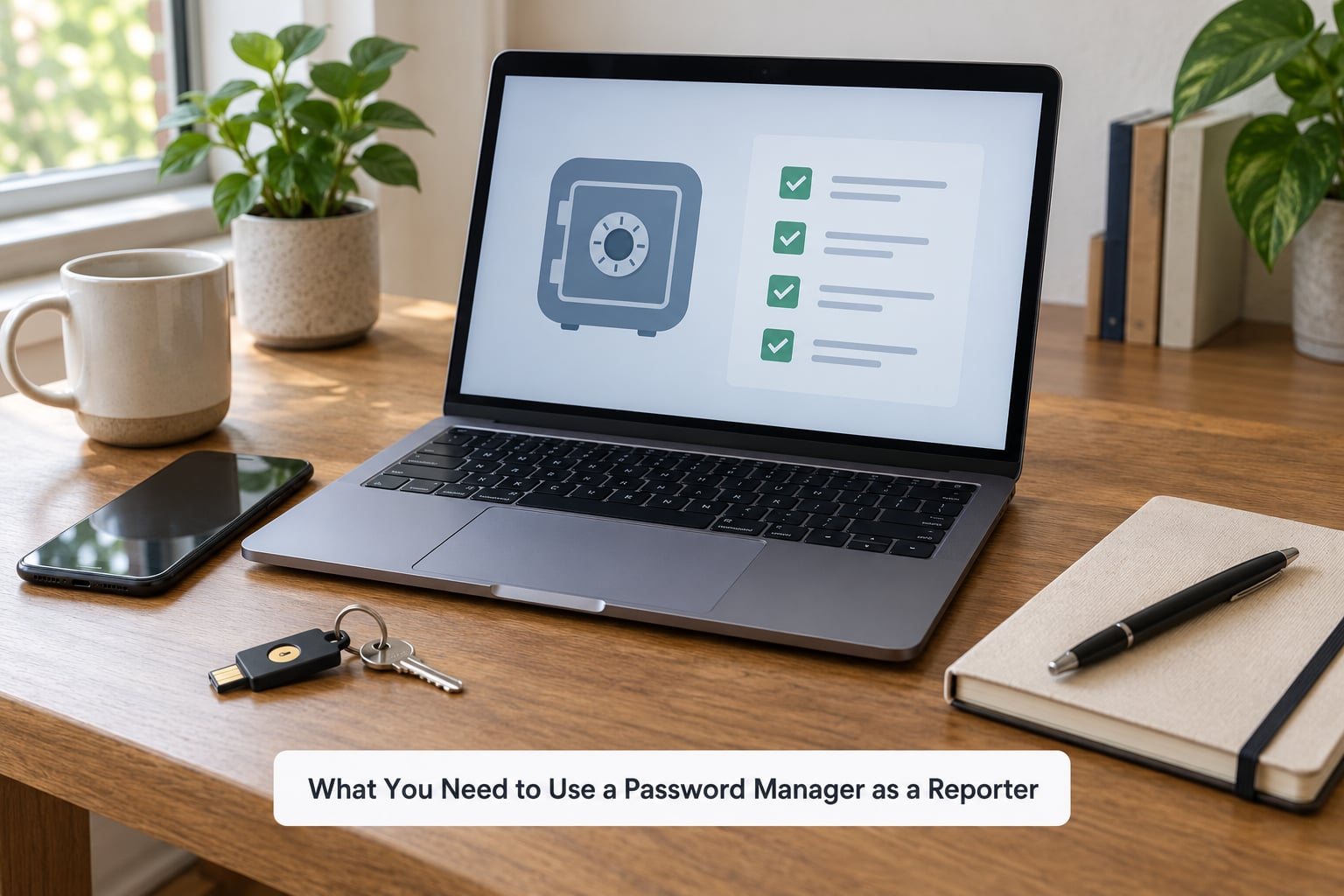
You need four things before you start, and none of them cost money. The first is an inventory: every account you own that touches reporting, plus the desk accounts your newsroom expects you to use. Write them down on paper, not in a notes app, because the notes app is one of the accounts on the list.
The second is your device list. Decide which devices touch the vault, which are work-managed, and which are personal. Reporters who travel often keep a separate reporting laptop and a separate phone profile, and that separation is the cheapest compartmentalization you can do.
The third is a decision about your second factor. You need an authenticator app or a hardware security key before you store anything important, because the vault account itself is now the master key to everything else. Pick that before Step 3 so you are not bolting it on later.
The fourth is offline storage for your recovery information: a printed emergency sheet in a locked drawer or a sealed envelope with your editor or a lawyer, plus a second copy somewhere physically separate. And before you touch a keyboard, check whether your newsroom already has a written policy or an approved manager, because a personal vault on a managed newsroom laptop can violate the outlet’s IT rules.
How to Use a Password Manager as a Reporter: Step-by-Step
Step 1: Choose a password manager for your reporting workflow
Choose on auditability and sharing, not on feature lists. The thing to verify first is the encryption model: a zero-knowledge, end-to-end encrypted vault means the company cannot read your data, which is also the cleanest answer to the subpoena question. The second check is a recent independent third-party audit, which is the only way to know the claim is real.
Four managers come up in almost every journalist security guide: 1Password, Bitwarden, KeePassXC and Proton Pass.
| Manager | Code model | Sync model | Best for |
|---|---|---|---|
| 1Password | Closed source, independently audited | Cloud sync across devices | Newsrooms that want shared vaults and a free press program |
| Bitwarden | Open source, independently audited | Cloud sync or self-hosted | Anyone who wants the option of self-hosting the vault |
| KeePassXC | Open source, local database | None by default, you move the file | Reporters who cannot keep cloud sync in the threat model |
| Proton Pass | Closed source, end-to-end encrypted | Cloud sync across devices | Teams already inside the Proton ecosystem |
Nobody needs to run two managers on one device. That habit comes up constantly in forum threads about journalists, and the answer is that two installed managers fight over autofill, which trains you to click the wrong prompt. Compartmentalize by device and by separate account, not by stacking managers in the same browser.
Consumer plans cover one person. If you need shared newsroom credentials, per-person permissions and offboarding, you need a team account, and that is a conversation with your editor or IT lead rather than a solo purchase decision.
Step 2: Create your account with a strong master password
The master passphrase is the one password a human still has to remember, so it should be long, unique and typed from memory. The best format for a reporter is five or six unrelated words, something like copper-trombone-harsh-lantern-quiet-pebble, which is far stronger per character than a short string of symbols you will forget.
Five rules for a master passphrase you will still have next year:
- Make it five words or longer, drawn from unrelated categories.
- Never reuse it, not once, not anywhere, not even on the old account you are leaving.
- Do not derive it from anything in your byline, your street, or your dog’s name.
- Let the manager’s own generator build it, then store it in your head rather than in a screenshot.
- Type it into the app on a device you trust, and check for a paste-blocking prompt so clipboard sniffers cannot catch it.
When the account is created, the service usually hands you a recovery code or emergency sheet. Print it, put it somewhere physically secure, and confirm you can find it without looking at your phone. You will not get another one unless you cancel your account and start over, which means losing the vault.
Step 3: Turn on multifactor authentication and a recovery method
Multifactor authentication on the vault account is not optional, and the method matters more than most guides admit.
| Method | Phishing resistance | Weakness |
|---|---|---|
| SMS text code | Low | SIM swapping moves the code to an attacker |
| Authenticator app | Medium | Lost phone means lost second factor |
| Hardware security key | High | Costs money and needs a second one stored safely |
| Passkey | High | Fewer services support it, so keep a fallback |
The practical setup: an authenticator app for daily sign-ins, plus one hardware security key on your person and a second in a locked drawer at the office. Keep one backup method enabled that is not SMS, and remove any SMS recovery option the service offers so a stolen number cannot reset the vault.
Then store the recovery codes properly. A recovery code sitting inside the vault it protects is not a backup, because losing the vault loses the backup with it. Print the codes and store them with your emergency sheet.
Step 4: Add reporting, newsroom, and source-related accounts
Add one record per account rather than one record per category. Your email, CMS, cloud storage, analytics, mapping tools, social accounts, translation services and freelance payment platforms each get their own entry, each with a strong unique password generated by the tool.
Use folders to keep the vault legible: reporting, newsroom shared, sources, travel, personal. A vault you cannot search is a vault you will work around instead of in, and working around a vault is how logins end up back in a notes file.
Use the secure notes field sparingly. A manager is the right place for a source’s Signal number if your threat model demands it, but the note field is inside an account that syncs, so it inherits every risk of the sync path. Sensitive identities often belong in a separate encrypted file on a separate device, with the manager holding only the login you need to reach it. If you move off a breached manager such as LastPass, delete the plaintext CSV export once the import is verified, because that file sits in your downloads folder in the clear, unencrypted, forever.
Step 5: Share credentials without exposing sources
Share access, not logins. A shared desk login has no audit trail, cannot be revoked for one person, and breaks the moment that person leaves. Team vaults fix this: each reporter has their own account, grants expire, and offboarding is a single removal rather than a scavenger hunt.
Label shared records clearly with what the login unlocks, who holds it, and when it should be reviewed. Then keep source material out of the shared vault entirely. Shared newsroom credentials are fine for a shared Twitter admin account or a wire service login. A shared vault entry for a source’s real name is a different category of risk and belongs somewhere with one reader.
When a reporter leaves the beat, remove their account, then rotate anything they had access to, including the desk logins they were the only person using. People in security-minded forums ask whether sharing a single login is ever acceptable, and the short answer is only in emergencies, with the fact that it happened written down afterward.
Step 6: Test access and prepare a documented recovery plan
Testing takes five minutes and tells you everything. Sign in from the browser extension on your work laptop, from the phone app, and confirm autofill works on a login you know. Search the vault for an account you have not opened in months, because search behavior differs between apps and a vault you cannot search is a vault you will not use under pressure.
Then document the recovery plan, because your memory is not a reliable storage medium for a single point of failure. Write down where the emergency sheet lives, who at the newsroom holds a copy, and what happens if the desktop editor changes jobs. If your manager supports emergency access, designate a trusted contact with a waiting period long enough to be useful and short enough that you can still deny it.
Two failure modes to plan for. Lose the device: revoke sessions from another machine, change the vault passphrase, and note that anything already autofilled stays recoverable on that device until it is wiped, so remote-wipe your phone and laptop. Lose the master passphrase: with no recovery sheet and no emergency contact, encrypted vaults are unrecoverable by design. That is a feature, and it is why the printed sheet exists.
Common mistakes reporters make with a password manager
Every one of these has a five-minute fix, and every one of them shows up in newsroom after newsroom.
- Reusing the master passphrase. It defeats the entire model. Generate a new unique one and change it anywhere else you have typed it.
- Storing recovery codes only inside the vault. Print them and split the copy between two physical locations.
- Sharing individual logins. Convert them to individual accounts with permissions you can revoke.
- Never checking what autofill actually saved. Log into a few low-risk sites and confirm the manager filled in the right account, not an old lookalike.
- Assuming recovery works. Test the emergency sheet and the trusted-contact process before you need them, not during a crisis.
- Mixing personal and sensitive reporting records in one vault. Personal banking and source details do not belong in the same container, especially on a synced plan.
- Leaving SMS recovery enabled. Remove it from the vault account and any account you would mind losing.
- Leaving the CSV export lying around. Delete it after a verified import, then empty the trash.
One habit covers most of it. Ten minutes on a Friday afternoon: run a breach check, rotate anything flagged, confirm the emergency sheet still exists, and remove access for anyone who has left since last time.
Frequently Asked Questions
Can journalists use a password manager for newsroom accounts?
Yes. A password manager is a normal tool for normal newsroom accounts, and most outlets that care about security encourage it. Check the outlet’s IT policy first, because some organizations mandate a specific manager or restrict where a vault may sync on a managed laptop. If the newsroom already runs a team vault, use that rather than starting a private one on a work device.
Should a reporter share one login with the entire newsroom?
No. A shared login has no audit trail, cannot be revoked for one person, and creates a single point of failure when the desk rotates staff. Grant individual accounts through a shared or team vault instead, then revoke access when a reporter leaves the beat. Shared logins should be a documented exception for emergency situations, not the normal arrangement.
What should I do if my phone is lost while using a password manager?
Revoke active sessions from another device, change your vault passphrase, and remote-wipe the lost phone. Remember that anything already autofilled on that device can still be used until it is wiped, so treat the wipe as urgent. Then check that your recovery sheet is current, since a lost phone may also mean a lost authenticator app and a second factor.
Is it safe to store source-confidential information in a password manager?
It depends on your threat model. A zero-knowledge encrypted vault protects credentials well, but any synced vault means the data travels through a provider’s servers. Many reporters keep source identities and sensitive notes in a separate encrypted file on a separate device, and use the manager only for the login needed to reach it. Avoid shared vaults for source details entirely.
How should a small newsroom share credentials with reporters?
Buy one team plan rather than several individual ones. Create an account per reporter, group them into folders by desk or beat, grant the minimum permission each person needs, and remove access on the day someone leaves. Rotate anything a departing reporter was the only person using, and keep the vault inventory reviewed a few times a year.
Do browser autofill and password managers work together safely?
Yes, with one rule: let the password manager’s own extension handle your accounts and turn off the browser’s built-in saving. Running both produces competing autofill prompts, and clicking the wrong one can hand credentials to the wrong profile. A browser’s built-in manager is convenient but hard to audit, share or segregate, which is why it is a poor fit for a newsroom.
Conclusion
Start with one account today: pick a manager, create a six-word master passphrase you have never used before, and print the recovery sheet. That first entry takes about ten minutes and gives you an immediate reason to keep going.
Then keep the two halves separate. Personal credentials, newsroom logins and source details belong in different containers, and newsroom access belongs in individual accounts rather than shared logins. Before you put anything mission-critical into the vault, turn on an authenticator app, add a hardware key, and test the recovery path on a device you trust. Everything else in this workflow is a refinement of those three habits.