Shared documents keep an edit log automatically, so the real question is not whether the tool records changes but whether you set it up so you can find them again. To use shared docs without losing track of edits, you need three things: one canonical file per draft, named versions at each milestone, and contributor access set to comment or suggest rather than edit outright. Set those once and the bookkeeping happens for you.
This guide is written for journalists, editors, developers and newsroom teams who pass the same draft between several people over a week or two. It works across Google Docs, Google Sheets, Microsoft Word, LibreOffice and Notion, because the habits transfer even when the menu paths do not. Ten minutes of setup at the start of a project is what stops the version-47-of-53 problem later.
One warning before we start. Losing track of edits is rarely a file problem. It is nearly always a permissions problem, a naming problem, or two people who both believed they owned the document. Fix the process and the history feature starts paying for itself.
Table of Contents
- What You Need
- Step-by-Step: How to Use Shared Docs Without Losing Track of Edits
- Common Mistakes
- Frequently Asked Questions
- Can I recover an earlier version after someone overwrites text in a shared document?
- What is the easiest way to track edits in Google Docs?
- Should my team use version history or comments to manage editorial changes?
- How do I prevent collaborators from creating confusing duplicate copies?
- How can external contributors edit a document without losing control of the final version?
- Conclusion
What You Need
You do not need a new app. You need a handful of decisions made before the first edit lands, plus a tool that already keeps a revision log. Here is the checklist.
A canonical document with version history switched on
One live file that the whole team opens, not a chain of copies passed around. In Google Docs and Google Sheets, history is always on and cannot be turned off, so confirm you are working in the original rather than a downloaded copy. In Microsoft Word, autosaved versions sit under File > Info > Version History when the file lives in OneDrive or SharePoint, and tracked changes under the Review tab have to be switched on deliberately. In LibreOffice, use Edit > Track Changes > Record.
A naming convention you can actually read later
Dates plus a status beat anything clever. Something like Q3-budget-draft-v3-review.docx tells you what the file is, which pass it is, and what it is waiting for. Avoid FINAL-final-really, because the next revision reuses that name and the copy becomes a competing source of truth.
One named owner of the document
Pick the person who merges suggestions, resolves comments and decides when a version is approved. In a newsroom that is usually the assigning editor; in a small product team it is whoever wrote the outline. Everyone else contributes. The owner is not a gatekeeper, they are the person who makes the call when two reviewers disagree.
An agreed commenting convention
Decide how people raise problems before they start. Suggested convention: initials in square brackets, then the issue, then the action, so a thread reads as [AK] this figure needs a source before 4pm. Decide too whether line-level notes go in comments or in suggestions, and stick to one per pass to avoid a document with two parallel sets of markup.
A place where approved copies are filed
One folder for live drafts, one for approved versions. When a draft is signed off, it moves to the approved folder under a clean name with no version number. That gives you a published copy that nobody edits in place, which is the difference between a record and a rumour.
Also worth agreeing now: whether external contributors get comment access or edit access, and who turns notifications down so a busy document does not generate an unread inbox. Google Drive can summarise activity instead of pinging you for every keystroke, and Microsoft Copilot and Dropbox Dash do something similar for their own platforms. Those summaries sit alongside the raw history rather than replacing it, so treat them as a briefing, not evidence.
Step-by-Step: How to Use Shared Docs Without Losing Track of Edits
Six steps, in order. The first two happen once per project; the rest repeat every time a round of edits comes back.
Set a Clear Source of Truth
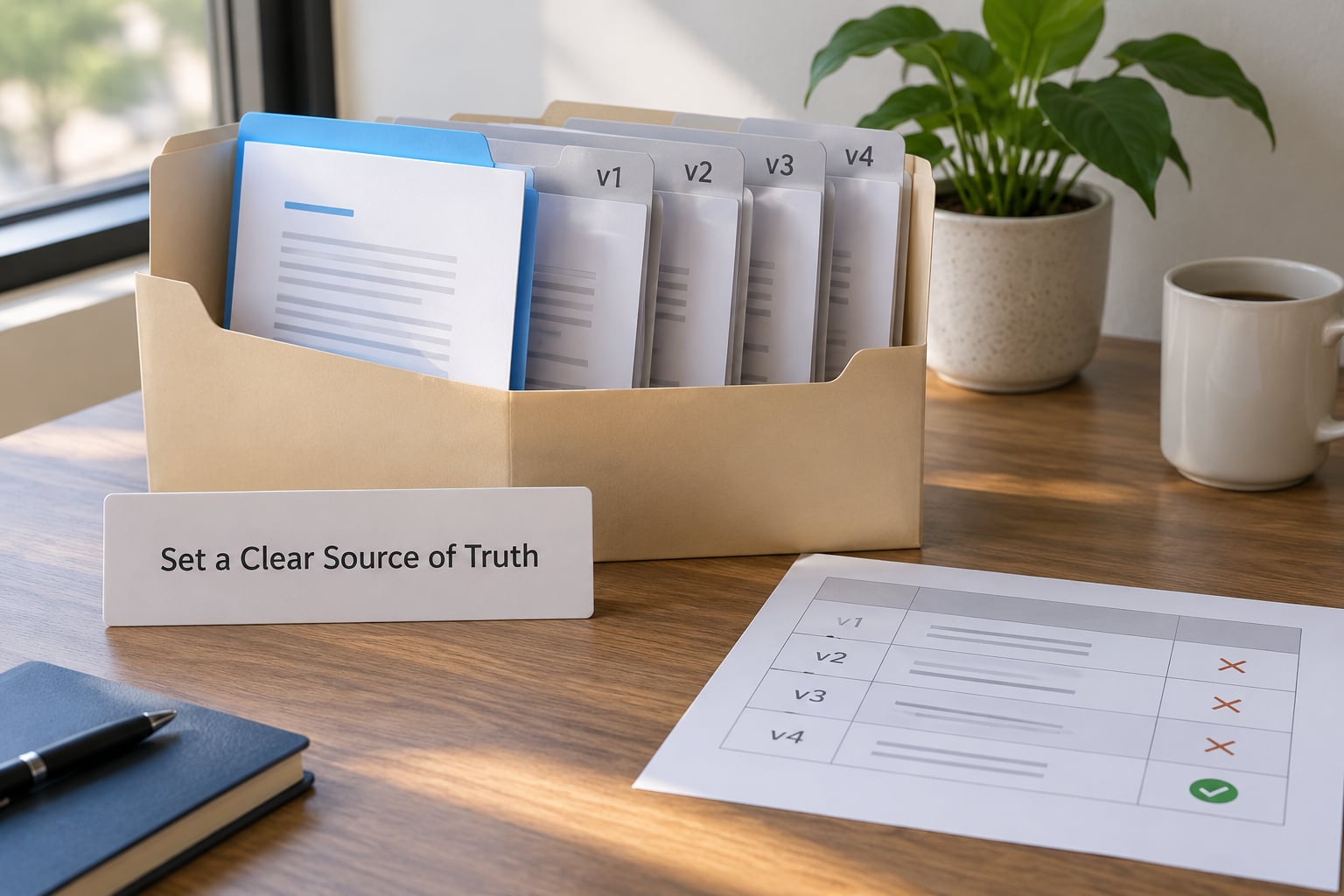
Create one canonical document and make it the only file anyone edits. Link supporting material from inside it rather than attaching a second version of the same draft, and name the current revision so a reader who opens the file knows which pass they are looking at.
Why it prevents confusion: parallel copies are the single most common cause of lost work. When two people open different copies, the tool cannot merge them, and the later save quietly wins. Why you can tell it worked: you can send the single link in a message, everyone opens the same file, and the document shows each collaborator’s cursor and name while they work.
Do the practical version of this. Put the canonical link at the top of the file, followed by a line reading Current version: v3, approved by [name], [date] and a list of the files it depends on. A reader who lands in the document has no way to guess which of the four near-identical files is live, so tell them in the first ten lines rather than in a chat message they will not find.
Then close the old ones. Move superseded drafts to an archive folder rather than leaving them where search can surface them. Do not delete history, but do stop treating an old file as an option. If somebody needs to compare, version history in the live file already holds every state you would have found in the copies.
Use Version History Before Making Substantive Edits
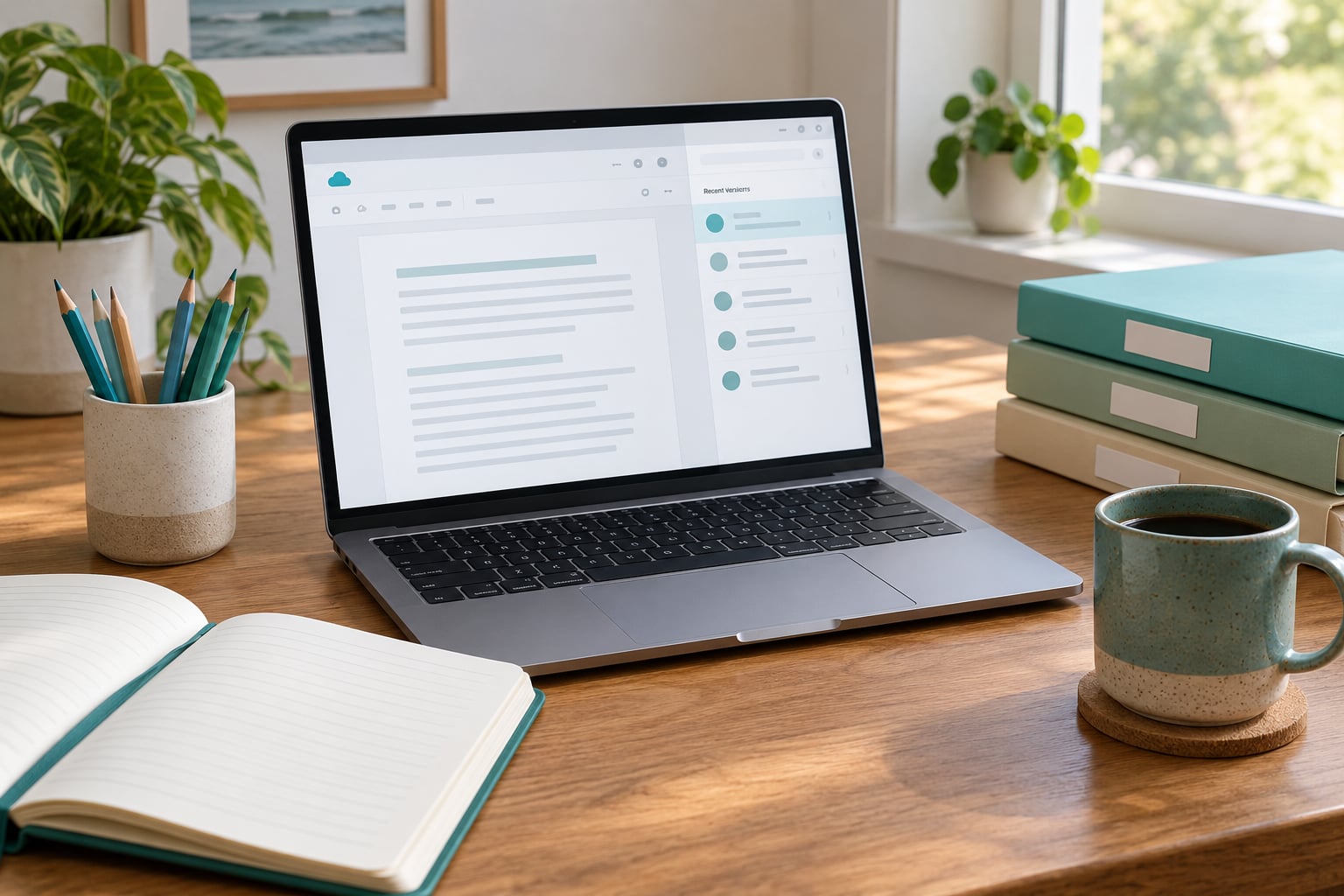
Open the revision log before you change anything substantial, save a named milestone, and know which snapshot holds the last approved state. In Google Docs, go to File > Version history > See version history. A right-hand panel lists snapshots newest first, each with an editor name and a timestamp, plus a color bar showing the shape of each change. Right-click any entry to name it, download it, or restore it.
Name your versions deliberately. A panel full of automatic entries tells you a change happened but not what it was. A version called Approved legal read — 12 Mar or Data viz placeholders inserted answers the question before you open anything. You only need two or three names per pass, not one per edit.
The same idea works elsewhere. In Google Sheets, File > Version history > See version history opens the identical panel, and right-clicking a cell gives you an edit history for that cell alone, which is faster than hunting through document-level snapshots. In Word, File > Info > Version History lists autosaved copies, and on mobile the Google Docs and Drive apps expose history from the three-dot menu on the file, though the side-by-side comparison view is much clumsier on a phone. LibreOffice keeps change records under Edit > Track Changes > Manage, and Notion exposes page history from the page menu.
Restoring needs care, because it is the step people regret. A restore replaces the current content with an older state, and users on the Google Docs support community report that the visible history afterwards can look truncated with no clean way to undo it. Use this routine instead of clicking restore straight away.
- Name and download the current version first, so you keep a copy of what exists now.
- Open the version history panel and confirm the snapshot you are restoring is the one you mean. Check the editor name and timestamp.
- Make a copy of the document, then restore into the copy. Leave the live file untouched until you have compared the two.
- Compare, promote what you recovered into the live file, then archive the copy.
How you can tell it worked: the passage you lost is back, and the rest of the document is unchanged from what you saved in step one. If something still looks off, the downloaded copy from step one is your reference point.
On mobile, treat history as read-and-restore only. The apps can show you when the last edit happened and who made it, but the compare view is not where you want to make a judgement call about a rewrite.
Assign an Editor and Comment Instead of Overwriting
Give the document an owner, and set contributor access so changes arrive as suggestions or comments rather than as silent overwrites. In Google Docs, the mode selector at the right end of the toolbar switches between Editing, Suggesting and Viewing for you, and Suggesting is the one reviewers want. In Word, Review > Track Changes records insertions, deletions and formatting against a reviewer name, and Review > All Markup shows them.
Why it prevents confusion: direct editing in Google Docs is not individually attributed inside the document. A collaborator types over your paragraph and the text simply changes. Version history still records that something happened, but nothing in the body tells you who did it or what they intended. Suggesting mode and track changes make the change visible, attributable and reversible. Guidance on the Google Docs support forum makes the same point: comment-only access surfaces changes as suggestions, direct edit access does not.
How you can tell it worked: every pending change carries a contributor’s name and colour, and your own text is still there underneath. If the body has no names on it, someone has editing access when they should not.
| Sharing level | What they can do | See version history | Restore a version | Change shown in the body |
|---|---|---|---|---|
| Viewer | Read and download | Yes | No | No, they cannot change anything |
| Commenter | Comment, and suggest edits | Yes | No | Yes, marked with their name |
| Editor in suggesting mode | Propose changes | Yes | No | Yes, as suggestions you accept or reject |
| Editor in editing mode | Change text directly | Yes | Yes, with owner permission | No, it merges into the live text |
Two people in the same file on editing mode is the real risk. If a legal read or a headline needs protecting, restrict editing and let named reviewers comment instead. In the Google Drive share dialog, General access defaults matter: a link set to anyone with the link can edit hands write access to anyone who receives the URL, and it is the usual reason work disappears.
For external contributors and clients, comment access is almost always the right default. You keep control of the words, the contributor gets a clear way to raise every objection, and nothing reaches the live file until you accept it. If a contributor genuinely needs to draft, give them a separate copy rather than the live file, then compare rather than merge.
Use a Consistent Comment and Decision Workflow
Comments are for decisions, not for editing. Once someone starts fixing sentences in a comment thread, the thread stops being a record and starts being a second draft. Keep the rule: corrections go in as suggestions or track changes, and comments carry the reasoning and the assignment.
Work through it in a fixed order so nobody has to guess whether a note is still open.
- Select the exact passage and anchor the comment to it, so the note has a location rather than a line number that shifts.
- Prefix the comment with initials and a keyword, such as
[AK] FACT-CHECK:or[JR] DECISION:, so threads can be sorted later. - Name the action and the deadline. A comment with no ask is a note to self that everybody ignores.
- Answer inside the thread, not by editing around it, so the reasoning survives with the decision.
- Resolve the thread once the change is in and verified, and check the resolved view before publishing. Unresolved comments are the most common reason a draft ships with an open question still in the margin.
How you can tell it worked: you can open a resolved-threads view, read a decision without opening the file, and see who owns anything still outstanding. A document where every comment is resolved and every action has a name against it is a document that can go to publication.
One habit from the Google Docs support community is worth copying: record decisions in the document, not in chat. Chat is where the reasoning starts, but it is searchable only for people who were in the thread at the time and it is invisible to anyone who joins the project next month. A short decision line in the file outlives the conversation.
| Mechanism | Where it lives | What it records | Best for |
|---|---|---|---|
| Version history | Google Docs, Sheets, Drive; Word File > Info | A snapshot of the whole file, with editor and time | Recovering deleted work, finding the last approved state |
| Suggesting mode | Google Docs toolbar mode selector | Proposed edits with an author, accept or reject | Review rounds in a shared draft |
| Track changes | Word Review tab | Insertions and deletions by reviewer, with All Markup view | Redlining, contracts, legal and editorial review |
| Comments | Either tool | Questions, decisions and assigned actions | Discussion that must survive the next edit |
| Audit log | Workspace or M365 admin console | Who did what, including access changes | Regulated or institutional teams |
Note what each row is not. Version history tells you a file changed, not why. Comments tell you what someone thought, not what the file now says. Track changes and suggesting mode tell you what the file will look like, once someone accepts the changes. You need at least two of these for a review round to hold together.
Review the Final Version Before Publishing
Run one deliberate pass on the finished file, with the comment panel open and the document in its All Markup or suggesting view. Aim for ten minutes. This is where small mistakes that version history cannot catch get found, because history records edits but not omissions.
Work through the same six checks every time so the pass is a routine rather than an opinion.
- Unresolved comments. Open the resolved and unresolved views. Every open thread needs either a fix or a deliberate decision to ship as is.
- Suggestions left pending. In Word, check Review > Accept > Accept All Changes only when you mean it, and confirm nothing is left as loose markup. In Google Docs, run the same sweep on suggestions.
- Accidental deletions. Read the last two or three paragraphs of each section. Whole paragraphs removed in a rushed pass are the classic quiet casualty, and they survive in history precisely because nobody looks at history.
- Name and date drift. Two spellings of a name, a date that changed in the body but not the headline, a contact that moved companies last month. Search the document for each proper noun you rely on.
- Duplicated paragraphs. When a document is reassembled from sections, a paragraph can appear twice. Read it aloud quickly rather than carefully, which is how duplicates usually surface.
- Edits after approval. Compare the file’s current timestamp against the approval date. If someone has been in the file since sign-off, the approval is stale and needs one more read.
Then name the final version, move it to the approved folder, and lock the live draft so the review round cannot reopen by accident. How you can tell the pass worked: the resolved-comments view is empty, the change list is empty, and one named person is accountable for the file now sitting in the approved folder.
Common Mistakes
These are the failures that show up again and again in shared documents, with the fix for each.
Unnamed copies
Someone downloads the file, edits it offline, and sends it back. Now there are two drafts with the same content history and different endings. Fix: treat the shared document as the only editable file. When a contributor genuinely needs a private copy, ask for a duplicate that is clearly labelled and handed back as suggestions rather than as a replacement file.
Relying on memory instead of a written record
A team agrees in a call that the second paragraph comes out, and nobody records it. Three weeks later someone asks why it is still there. Fix: write the decision into the document, next to the passage, with initials and the date. It takes fifteen seconds and it survives people leaving.
Editing during a review round
The reviewer opens the file to leave comments and quietly fixes three things at the same time. The writer cannot tell their own changes from the reviewer’s, and the review comments now point at text that has moved. Fix: reviewers comment or suggest, editors edit. If both roles are yours, do the editing pass first, then open the file again in commenting mode.
Vague comments
Notes reading this is wrong or fix this send the writer back to the paragraph with no idea what to do. Fix: name the passage, the problem and the action. A comment that cannot be answered without guessing is a comment that will not be answered.
Too many versions in the list
A panel with fifty automatic entries and no names turns version history into noise, and the snapshot everyone needs is the one they cannot identify. Fix: name two or three per round, at the moments that matter, and archive anything that is not a milestone.
Treating chat as the official record
Decisions live in a group chat, the file gets updated by one person, and the reasoning is gone. Fix: post the decision in the document thread, then summarise it in one line at the top of the file. Chat is the notification, not the archive.
Assuming history travels with the file
A document is downloaded as Word or PDF, emailed, and the recipient assumes they can see how it got there. They cannot. Fix: state the approved version and date in the message body, and treat any history as living only in the original tool.
Two habits cover most of the above. Keep one owner per document, and make the first thing anyone does on opening an unfamiliar file be reading the status line at the top. Ten seconds of reading has saved more drafts than any tool setting.
Frequently Asked Questions
Can I recover an earlier version after someone overwrites text in a shared document?
Yes, in most cases. In Google Docs open File u0026gt; Version history u0026gt; See version history, find the snapshot from before the overwrite and right-click it to restore. In Word, use Review u0026gt; Track Changes to see the original text, or check File u0026gt; Info u0026gt; Version History for an autosaved copy. Download or name the current version first, because restoring replaces the live content and users report the visible history can look truncated afterwards. Work on a copy until you have compared it.
What is the easiest way to track edits in Google Docs?
Turn on version history awareness rather than a setting: open File u0026gt; Version history u0026gt; See version history, then right-click the milestone entries and name them. Naming is what makes the panel useful weeks later. For a review round, set the toolbar mode selector to Suggesting so changes arrive attributed rather than as silent overwrites. History itself is always on and cannot be disabled, so the work is naming versions and choosing the right access level.
Should my team use version history or comments to manage editorial changes?
Use both, for different jobs. Version history is your recovery layer: it holds a snapshot of the whole file with an editor name and timestamp, and it is what you use when something is deleted. Comments are your reasoning layer: they record why a change was requested, who owns it, and when it was resolved. Neither replaces track changes or suggesting mode, which show what the text will look like once someone accepts the changes.
How do I prevent collaborators from creating confusing duplicate copies?
Make the shared document the only file anyone edits, put its link at the top of the file, and name the current revision in a status line. When a contributor needs to work separately, ask for a clearly labelled copy and have them return it as comments or suggestions rather than as a replacement file. Archive superseded drafts instead of leaving them where search can surface them, and check the Drive share dialog so General access is not set to anyone with the link can edit.
How can external contributors edit a document without losing control of the final version?
Give them comment access rather than editing access. In Google Docs the Commenter role lets them comment and suggest edits, so every change carries their name and reaches the live text only when you accept it. In Word, share the file and have them use Review u0026gt; Track Changes, then review with All Markup shown. Set a deadline, and treat any file sent back as a copy to be compared rather than a document to be swapped in.
Conclusion
Start with one action before the next editing round: pick a single shared document as the source of truth, write the current version name at the top of it, open version history once to confirm it is recording, and agree who owns the file and how comments get closed. Those four decisions take ten minutes and they remove most of the ways a good draft goes missing. Everything after that, naming milestones, suggesting instead of overwriting, running the final six checks, is habit layered on top of a setup you already trust.