To search thousands of documents quickly, stop opening files one at a time and build a full-text index once. An indexer reads every file in the collection, records the words and where they appear, then answers your queries in milliseconds afterward. The first index on 10,000 PDFs takes minutes; every search after that is close to instant.
The catch is that most collections are half-prepared. Files sit in twelve folders with meaningless names, a third of them are scans with no text layer, and nobody wrote down which query found what. Fix those three things and the search becomes fast.
This is the workflow I would hand anyone who says they are drowning in documents, whether that is a newsroom with source documents, a county archive, or a research desk with a decade of PDFs. Seven steps, roughly an hour of setup for a mid-sized collection.
Table of Contents
- What You Need
- Step-by-Step: How to Search Thousands of Documents Quickly
- Step 1: Organize the document collection before searching
- Step 2: Build a focused keyword and phrase list
- Step 3: Use metadata filters to narrow the collection
- Step 4: Run OCR on scanned and image-only documents
- Step 5: Search in batches and save the useful results
- Step 6: Use AI to classify and summarize candidates
- Step 7: Verify findings and close the search loop
- Common Mistakes
- Frequently Asked Questions
- Can Windows Search find text inside PDF files?
- How do I search scanned PDFs that have no text layer?
- What is the best free way to search thousands of documents quickly?
- Why is Acrobat Advanced Search so slow on large folders?
- Can ChatGPT or an AI assistant search my document collection?
- Should I track documents in a spreadsheet or a database?
- Conclusion
What You Need
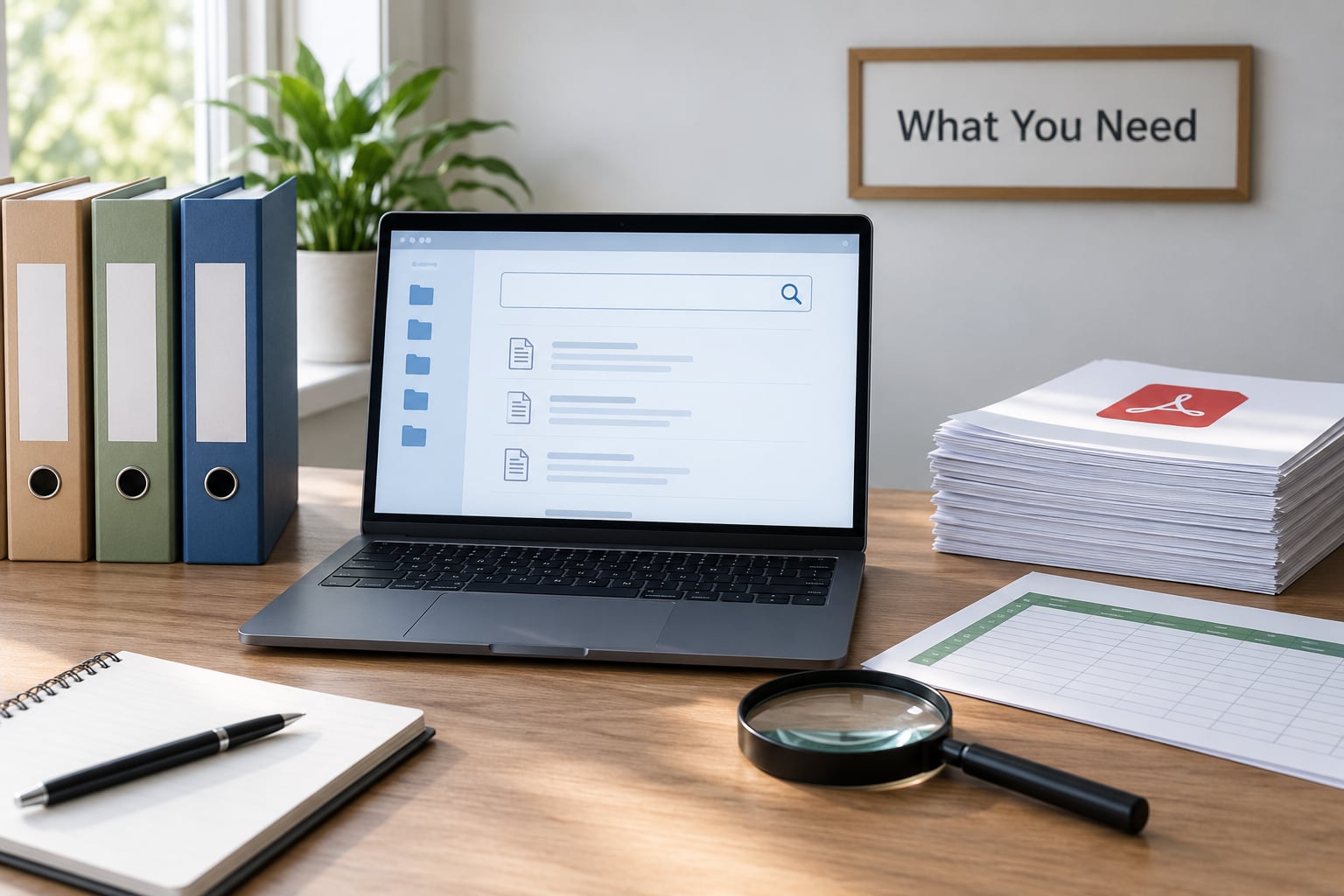
Four things, and none of them expensive. A full-text indexer, a way to handle scans, a place to log searches, and one document you already know the answer to so you can test the setup.
- A full-text indexer. Windows Search does this natively on Windows. DocFetcher, Recoll and FSearch do it as standalone desktop apps on any platform. Acrobat, Foxit and PDF-XChange ship batch search inside the editor.
- OCR for anything scanned. A scanned page of a quarterly magazine is an image, so no search tool can read it until OCR adds a hidden text layer underneath the picture. OCRmyPDF and Tesseract handle this in batch for free.
- A search log. A plain spreadsheet is fine: query, filters used, date run, files kept, files excluded and why. One column for the reason you excluded a file is the column that makes the whole thing auditable later.
- A known-good test file. Pick a document containing a rare, unusual string — a full person name, a docket number, an odd hyphenation. Search for it once your index is built. If the file does not come back, your setup is broken, not your search terms.
Screen readers and email archives often turn PDFs into image-only files without anyone noticing. Run a quick audit before you commit to a method, because the answer to “how do I search thousands of documents quickly” changes completely depending on how much of your collection is scans.
Step-by-Step: How to Search Thousands of Documents Quickly
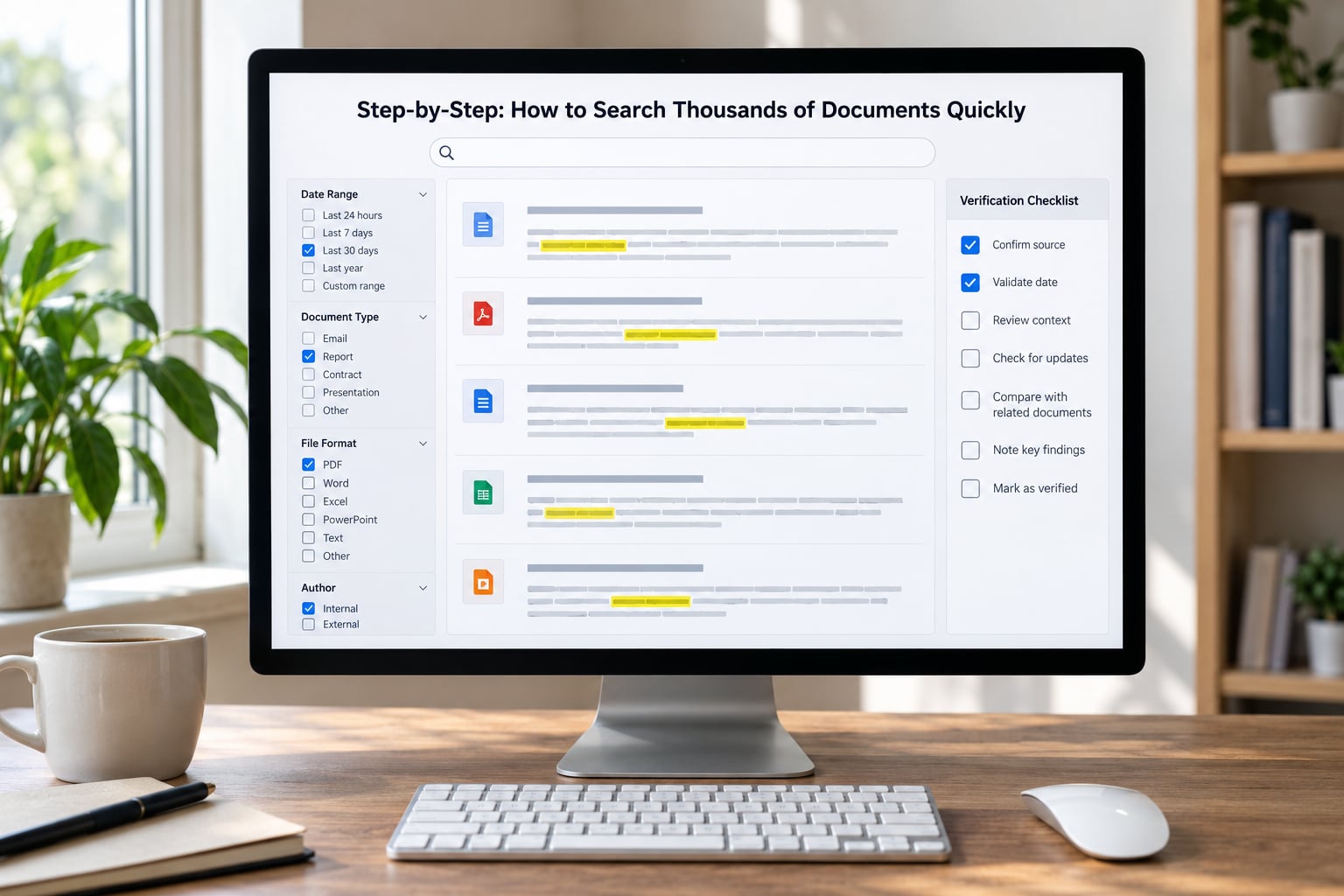
Step 1: Organize the document collection before searching
Put the whole collection in one root folder before you index anything. Indexers handle nested folders fine, but they index faster and cleaner when the top level makes sense.
A structure that has survived real use looks like this: a root folder, one subfolder per source or year, and a consistent filename pattern inside each one — date, then short title, then a sequence number. 2019-03-council-minutes-04.pdf sorts correctly and tells you what it is before you open it.
While you are in there, record where each batch came from and the date range it covers, then delete exact duplicates. Do not work on the originals: copy them into the working folder and leave the source untouched.
How to tell it worked: you can answer “how many files, from what period, from which sources?” without opening a single document.
Step 2: Build a focused keyword and phrase list
Turn your research question into exact phrases before you touch the search box. “Something about the budget” produces noise; a quoted phrase plus synonyms plus a name produces evidence.
Write each term into three groups: exact phrases in quotes, component names and their known spelling variants, and exclusion terms you want ruled out. Search engines generally support AND, OR, NOT and parentheses in their advanced boxes, and a few support quoted phrases with wildcards.
Test every query against your known-good file before you run it across the collection. A query that returns nothing on a file you know contains the term is broken, and finding that out early costs you two minutes instead of an afternoon.
How to tell it worked: your term list produces at least one hit on the test file and no obvious noise on the first hundred results.
Step 3: Use metadata filters to narrow the collection
Content search tells you a word is there. Metadata filters tell you which 200 of those 10,000 files are actually plausible, and they do it in seconds.
Nearly every indexer lets you restrict by date range, file type, author, size, and sometimes folder path. Desktop search utilities read filesystem dates; document management systems add fields like department, case number, matter and retention status.
That difference matters at scale. One archive on r/Archivists runs about 10,000 OCR’d PDFs on a NAS and reports that Acrobat Advanced Search works but takes a while. The same archive filtered to a three-year window and a single collection series is a completely different search.
How to tell it worked: applying a date or type filter cuts the result count by at least half without dropping anything relevant to your question.
Step 4: Run OCR on scanned and image-only documents
If a PDF has no text layer, no tool on earth can find words inside it. OCR adds an invisible text layer beneath the image, and from that point on the file behaves like any other document.
OCRmyPDF is the workhorse: point it at a folder, give it an output directory, and it processes the batch. Tesseract is the engine underneath it and can be driven directly. Acrobat and most desktop OCR utilities handle single files well, which is where you want to start.
Always spot-check before you trust the index. Pick five pages: one clean scan, one bad scan, one multi-column layout, one page that is mostly a table, and one with formulas or footnotes. Search inside each for a word you can read with your own eyes.
This matters because OCR creates false confidence. It looks like a working search index whether or not it recognized the right characters, and names with accents, old print runs and hyphenated line breaks are where it quietly breaks.
How to tell it worked: your five test pages each return the expected term, and any that fail get routed to a manual review list instead of into your results.
Step 5: Search in batches and save the useful results
Run one precise query at a time rather than a broad one that returns 4,000 hits. A result list you can actually read is a finished piece of work; 4,000 filenames are not.
Compare the hit count for each query in your list. A query returning nothing is either a spelling problem or genuinely absent material, and both are worth recording. A query returning hundreds usually wants a tighter phrase or a metadata filter.
Save the shortlist rather than the whole result set. Most indexers let you export a hit list or copy paths, and a spreadsheet of filename, path, date, matching snippet and query used is a working evidence file you can hand to an editor or a colleague.
Keep the newspaper-database mental model. Researchers want the highlighted line and a jump-to-page link, not just a filename, so prefer tools that preview the page in context.
How to tell it worked: every row in your shortlist carries the query that produced it, and you can reopen any file and land on the matching page.
Step 6: Use AI to classify and summarize candidates
Once you have 50 or fewer candidate files, an AI assistant with file upload is genuinely useful for a first pass: ask it to pull out dates, names, organizations and dollar figures, and to tell you which candidates answer your question.
For text, Markdown and lightly formatted documents, ripgrep on the command line is the fast path. It searches tens of thousands of files in seconds, handles regular expressions, and for PDFs a pdftotext conversion step in front of it unlocks the same speed. Technical collections with structured filenames are exactly where this wins.
Two rules. Never upload anything confidential, privileged or subject to a court order to a cloud assistant — run those locally instead. And treat every AI summary as a hypothesis: confirm each claim against the original page before it enters your evidence file.
How to tell it worked: you spot-check three summaries against the source documents and they match, or you have found a specific gap to re-check.
Step 7: Verify findings and close the search loop
Open every file you intend to keep. Read the surrounding page, not just the highlighted line, because a name in a sentence can mean something entirely different from the same name in a heading.
Confirm the author, date and document type against the original, then record the exclusions — a document you looked at and rejected with the reason attached is worth more than a silent gap, because it tells the next person you were thorough.
Finally, test whether your set answers the original question. If it does not, go back to step 2 rather than opening more files; the answer is nearly always a better query, not more patience.
How to tell it worked: someone else could rerun your logged queries and filters, land on the same documents, and understand why the rest were excluded.
Common Mistakes
Every one of these shows up repeatedly in forums and newsroom help channels, and each has a cheap fix.
- Searching before you organize. Put everything in one root folder with a consistent naming pattern first; indexing unordered files wastes the index you paid for.
- Relying on one broad keyword. Build a list of exact phrases, synonyms and exclusions, then test them one at a time against a file you know contains the term.
- Overlooking OCR failures. Spot-check five pages — one clean, one bad, one multi-column, one table-heavy, one with footnotes — before trusting any result from a scan.
- Trusting an AI summary. Verify every extracted fact against the original document page before it reaches your evidence file.
- Saving every hit. Keep a shortlist instead, with the query, filters and matching snippet attached to each row.
- Failing to record the search. Log queries, filters, dates and exclusions as you go, not at the end from memory.
- Searching image-only PDFs directly. Run OCR first; there is no text to find otherwise, and the empty result set looks like a bad query rather than a bad file.
One more habit pays off immediately. Index once, search many. If you expect to return to the same collection more than twice, build the index before your first real query rather than on the day you get stuck.
Frequently Asked Questions
Can Windows Search find text inside PDF files?
Yes, once the PDF filter is installed and content indexing is switched on. Windows Search indexes filenames and metadata out of the box, but PDF contents are handled by a separate filter component. After you install it, turn on Always search file names and contents in Indexing Options, let it re-index, and full-text search inside PDFs works from the Start menu search box. For a dedicated index with previews and jump-to-page, a standalone indexer is faster.
How do I search scanned PDFs that have no text layer?
You cannot, until OCR adds a hidden text layer under the page image. Run a batch OCR tool such as OCRmyPDF or Tesseract over the folder, write the output to a separate folder so the originals stay intact, then index that output. Before you trust the results, open five sample pages and search for words you can read visually. Old print runs, accented names and multi-column layouts are where recognition quality drops fastest.
What is the best free way to search thousands of documents quickly?
For most collections, a free desktop indexer is the answer. DocFetcher reads PDFs, DOCX and Office formats out of the box and builds a portable local index. Recoll indexes a wider range of file types, including archives, though its setup is steeper and it is more comfortable on Linux. For text, Markdown and code, ripgrep on the command line is hard to beat. Windows users can also enable Windows Search content indexing for PDFs at no cost.
Why is Acrobat Advanced Search so slow on large folders?
Acrobat reopens and parses candidate documents during the search instead of consulting a prebuilt index, so cost grows with every file it has to open. On collections of roughly 10,000 PDFs, especially multi-gigabyte scans, that becomes minutes per query. One archive reported on r/Archivists described exactly this behaviour on 10,000 OCR’d files. The fix is a persistent index built once, so queries read from the index instead of from the files.
Can ChatGPT or an AI assistant search my document collection?
For small ad-hoc batches, yes. Most assistants accept a limited number of uploaded files and will answer questions across them, which is useful when you have 20 or 30 candidates rather than a real archive. Two cautions. Confidential, privileged or court-restricted material should stay on your own machine, and any extracted fact needs checking against the original page. For recurring searches over thousands of files, a proper local index is faster and repeatable.
Should I track documents in a spreadsheet or a database?
A spreadsheet is enough for a few thousand files and gives you instant sorting and filtering by date, source and status. A database — or a document management system — earns its keep once you need multi-value fields such as several case numbers per document, per-file permissions, retention rules or an audit trail of who opened what. Advice on the freeCodeCamp forum pointed the same direction: store queryable fields such as date, subject and title rather than relying on raw text alone.
Conclusion
Start with the folder, not the tool. Consolidate the collection, pick one full-text indexer, run OCR on the scans, and build the index once — then log every query as you go. Search results you can rerun and explain beat a folder full of files nobody can find again.
As of 2026 the free desktop options in this guide are still actively maintained, so the setup cost is an afternoon rather than a purchase.