
On Linux the whole job is one line of cron: 0 6 * * * /home/you/scripts/daily-report.sh >> /home/you/logs/daily.log 2>&1. On Windows it is a Daily trigger in Task Scheduler pointed at your script, and on macOS the native answer is a launchd agent. So here is how to schedule a script to run daily, four ways, with the exact commands and the fixes for the failures that cause the most head-scratching.
Budget about ten minutes per method, and read the troubleshooting section before you set up anything that has to keep running unattended.
Table of Contents
- What You Need
- Step-by-Step: How to Schedule a Script to Run Daily
- Common Mistakes
- Frequently Asked Questions
- Can I run a different script every day?
- What time zone does a scheduled script use?
- Does the computer need to be switched on for the task to run?
- How can I stop a daily scheduled script from running?
- Should I use cron, Task Scheduler, or a cloud scheduler?
- How do I keep two scheduled runs from overlapping?
- Conclusion
What You Need
Before you open any scheduler, get these six things straight. Every one of them has cost somebody an afternoon.
- The script itself, tested in a terminal. If it fails when you run it by hand, no scheduler will fix it.
- An absolute path to the script and to every binary it calls. A working terminal resolves
python3for you. A scheduler usually does not. - An interpreter line such as
#!/usr/bin/env python3or#!/bin/bashon the first line. - Executable permission on Linux and macOS:
chmod +x script.sh. - A log destination. A file you can read later beats output that scrolls away in a window nobody is watching.
- A machine that stays awake, or an explicit decision to accept that the job only runs when someone is logged in.
One more thing worth deciding now: whether the job runs as you or as root. Most daily jobs need no special rights at all, and running everything as root just widens the damage when something goes wrong.
Step-by-Step: How to Schedule a Script to Run Daily
Which method you use comes down to one question: what does this machine run? Linux and older macOS setups answer with cron, current macOS answers with launchd, Windows answers with Task Scheduler, and a Python process can schedule itself. If you are deploying across mixed machines or want the job to run when the laptop is closed, look at the cloud option in the FAQ below.
Prepare the Script for Scheduling
Schedulers launch your script with almost none of the context your terminal provides. No working directory, no shell aliases, no exported variables, a minimal PATH, and no terminal attached for error output.
Start with an unambiguous interpreter line and absolute paths. Compare these two versions of the same job:
# Fragile: relies on cron's PATH and the current directory
30 6 * * * python3 refresh_data.py

# Robust: full paths everywhere, output captured
30 6 * * * /usr/bin/python3 /opt/pipeline/refresh_data.py >> /var/log/pipeline.log 2>&1
Grant the executable bit and then run it once the hard way, the way the scheduler will:
chmod +x /home/you/scripts/daily-report.sh
cd / && /home/you/scripts/daily-report.sh
echo "exit code: $?"
Running from / is the point. If the script only works when your home directory happens to be the working directory, it will fail under the scheduler, and the failure will look completely random.
How to Schedule a Script to Run Daily on Linux with Cron
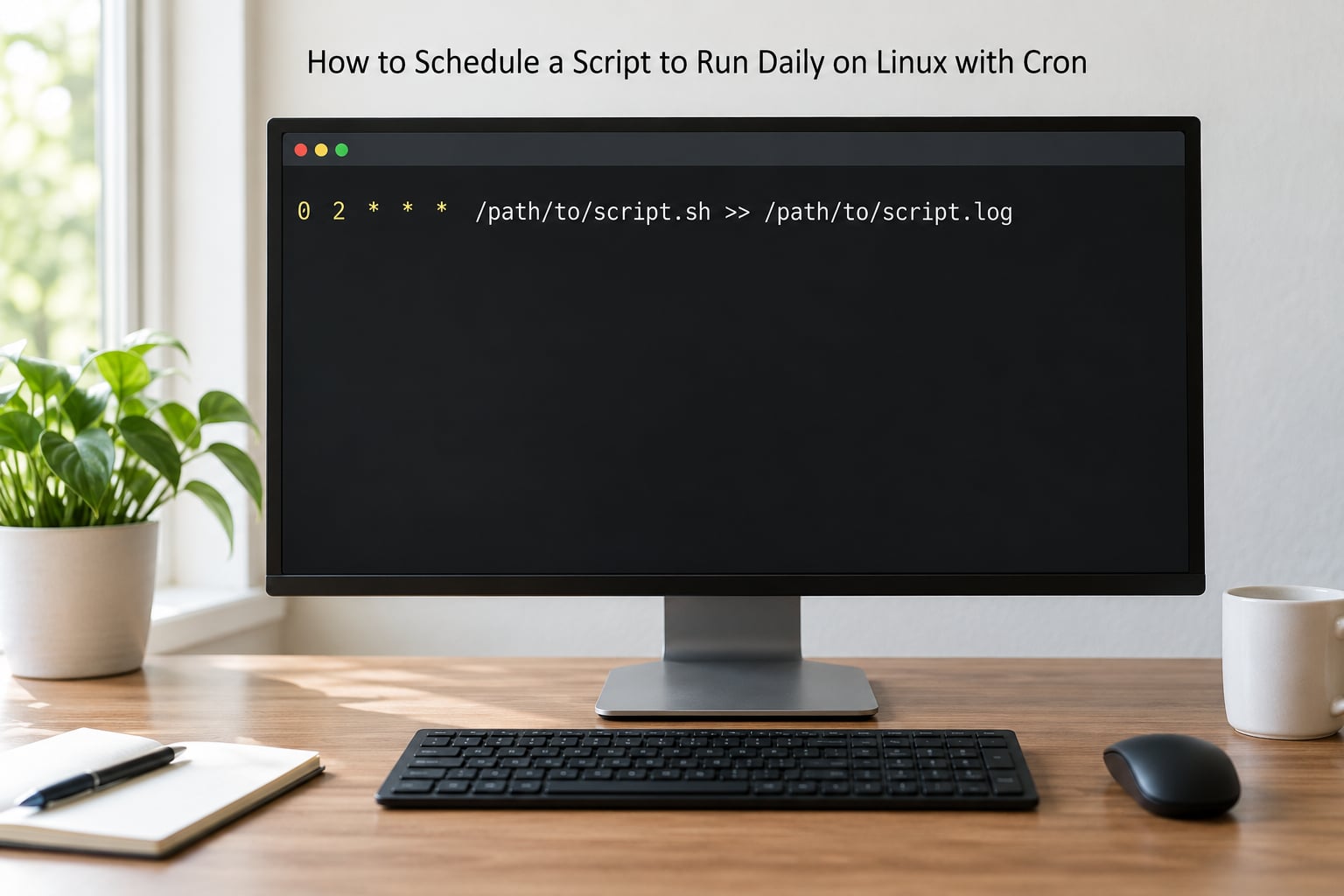
Cron is the standard Linux answer. A background daemon reads schedule files called crontabs, and each line pairs five time fields with the command to run at that time.
crontab -eAdd one line and save:
0 6 * * * /home/you/scripts/daily-report.sh >> /home/you/logs/daily.log 2>&1Those five fields, read left to right, are minute, hour, day of month, month, day of week. An asterisk means every possible value, so 0 6 * * * means minute 0, hour 6, every day, every month, every weekday, which is simply 6:00 AM every day.
The redirection matters more than most guides admit. >> appends rather than overwrites, which is what you want for a log that runs forever. 2>&1 folds error output into the same file, and it only works in that order because the shell duplicates the error stream into the one you just pointed at the file. Reverse them and the errors go nowhere.
Confirm the entry landed, and check the daemon is alive:
crontab -l
systemctl status cron
If crontab -l shows nothing, the file was saved without an explicit new line or the editor wrote somewhere unexpected. That check takes two seconds and settles most “cron is broken” tickets.
Cron also accepts shorthand words, which are handy for anything irregular: @reboot runs at startup, @hourly on the hour, @daily and @midnight at midnight, @weekly on Sundays, @monthly, and @yearly.
Two cron settings cause most of the confusion after setup. First, PATH: cron starts with a bare-bones environment, so a script that finds git in your terminal may not find it here. Either use full paths in the command or add a line above the job:
PATH=/usr/local/bin:/usr/bin:/bin
0 6 * * * /home/you/scripts/daily-report.sh >> /home/you/logs/daily.log 2>&1
Second, MAILTO: if you set it, cron emails whatever the job prints, which on a machine with no mail transport quietly does nothing. Redirecting to a log file is more reliable than mailing yourself output.
For a Python job, the same rule applies with the interpreter spelled out:
30 6 * * * /usr/bin/python3 /opt/pipeline/refresh_data.py >> /var/log/pipeline.log 2>&1If your script uses a virtual environment, activate it inside the script rather than in the crontab, because the activation only exists for the lifetime of the command.
On a machine running systemd, a timer unit is the tidier alternative because you get real logs and a clear exit status. Create two files, daily-report.service and daily-report.timer:
# /etc/systemd/system/daily-report.service
[Unit]
Description=Daily data refresh

[Service]
Type=oneshot
ExecStart=/opt/pipeline/refresh_data.py

# /etc/systemd/system/daily-report.timer
[Unit]
Description=Run the daily refresh at 6am

[Timer]
OnCalendar=*-*-* 06:00:00
Persistent=true

[Install]
WantedBy=timers.target
Then run sudo systemctl daemon-reload && sudo systemctl enable --now daily-report.timer. Persistent=true is the setting that catches a run missed while the machine was off, which cron will not do for you.
Finally, if you would rather the program schedule itself, the Python route runs a job every day with a few lines:
from apscheduler.schedulers.blocking import BlockingScheduler

def refresh():
    ...

scheduler = BlockingScheduler()
scheduler.add_job(refresh, "cron", hour=6, minute=0)
scheduler.start()
The lighter schedule library does the same job in schedule.every().day.at("06:00").do(refresh) inside a loop. Both keep the process alive, so they need something to restart it after a reboot, which is what the OS scheduler gives you for free.
How to Schedule a Script to Run Daily on macOS with launchd
On current macOS versions, cron still runs but Apple has deprecated it in favour of launchd, and launchd is the only option that behaves properly when a Mac is asleep. A daily job lives in a property list, usually in your own user folder so it runs without admin rights.
Create ~/Library/LaunchAgents/com.hackthepress.daily.plist:
<?xml version="1.0" encoding="UTF-8"?>
<!DOCTYPE plist PUBLIC "-//Apple//DTD PLIST 1.0//EN"
  "http://www.apple.com/DTDs/PropertyList-1.0.dtd">
<plist version="1.0">
<dict>
  <key>Label</key>
  <string>com.hackthepress.daily</string>
  <key>ProgramArguments</key>
  <array>
    <string>/bin/bash</string>
    <string>/Users/you/scripts/daily-report.sh</string>
  </array>
  <key>StartCalendarInterval</key>
  <dict>
    <key>Hour</key>
    <integer>6</integer>
    <key>Minute</key>
    <integer>0</integer>
  </dict>
  <key>StandardOutPath</key>
  <string>/Users/you/logs/daily.log</string>
  <key>StandardErrorPath</key>
  <string>/Users/you/logs/daily.err.log</string>
</dict>
</plist>
Load it and confirm it is registered:
launchctl bootstrap gui/$(id -u) ~/Library/LaunchAgents/com.hackthepress.daily.plist
launchctl list | grep hackthepress
Because the plist lives in LaunchAgents, macOS loads it at every login, so a reboot needs no extra step. To remove or reload it, use launchctl bootout gui/$(id -u)/com.hackthepress.daily.
Two Mac-specific details catch people out. A Mac that is asleep at the scheduled moment runs the job on wake if the agent is loaded, which is a genuine advantage over cron. And launchd sets PATH itself, so absolute paths in the plist matter just as much as they do in a crontab.
How to Schedule a Script to Run Daily in Windows Task Scheduler
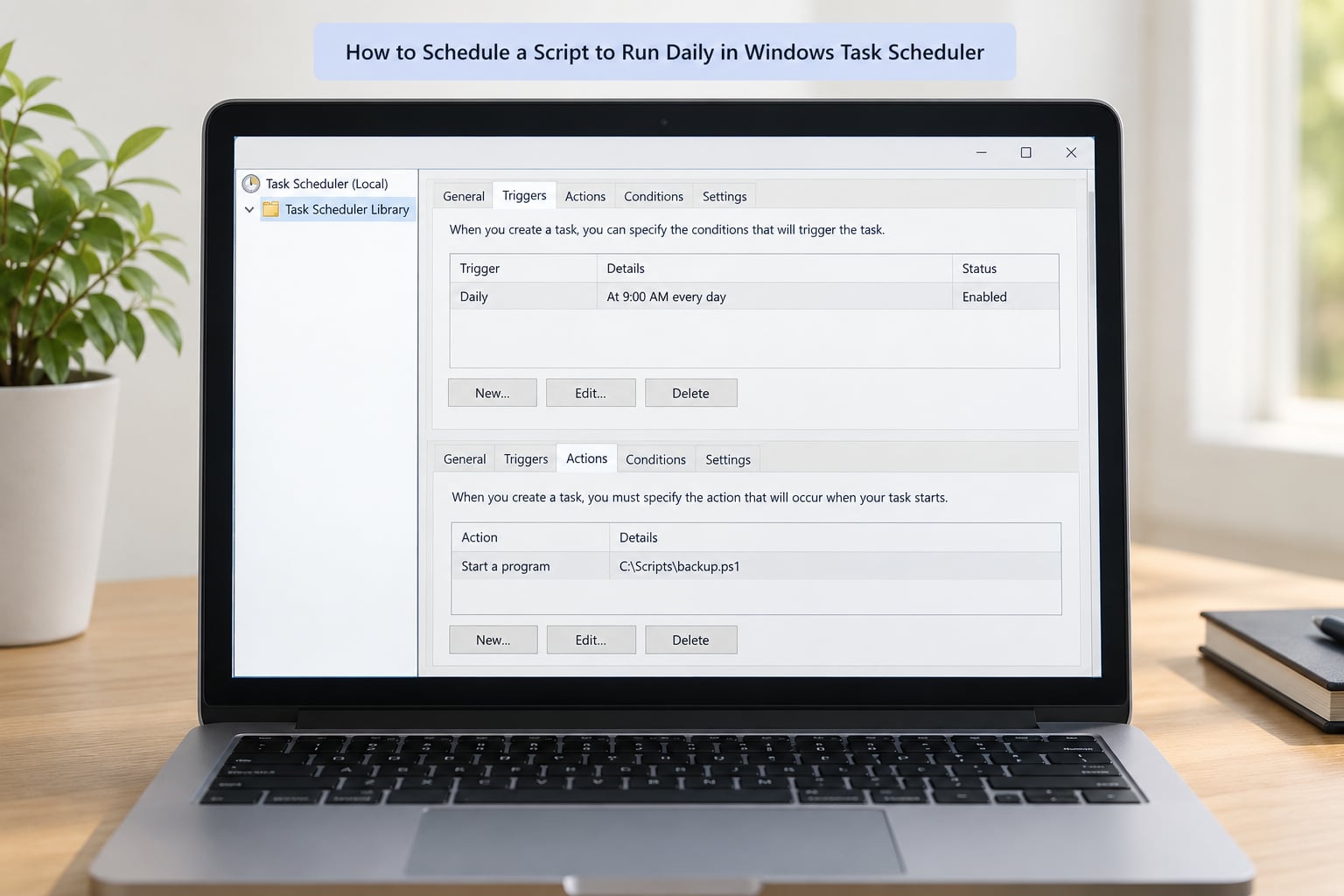
Task Scheduler is the Windows equivalent, and it has a GUI as well as a command line. In the GUI, open Task Scheduler from the Start menu, choose Create Task on the right, then work through the tabs. The basic view hides some settings, so switch to the full editor if a tab looks empty.
On General, give the task a name such as Daily Report and pick the account it runs under. Choose Run whether user is logged on or not if it must fire while nobody is at the machine, since tasks bound to an interactive session stop working once that session ends.
On Triggers, choose New, set Start the task to Daily, set the start time to 06:00, and leave the recurrence settings at their defaults.
On Actions, the program matters. For a batch file, point at C:WindowsSystem32cmd.exe and put /c C:scriptsdaily-report.bat in the arguments. For a PowerShell script, point at powershell.exe with -ExecutionPolicy Bypass -File C:scriptsdaily-report.ps1. Pointing the program straight at the script works for some file types and fails mysteriously for others, so the wrapper is the safer habit.
On Conditions, clear any box that stops the task on battery power or only starts it on AC, and on Settings, enable Run task as soon as possible after a scheduled start is missed. That single checkbox is Windows’ answer to a machine that was asleep at 6:00 AM.
Save the task, then right-click it and choose Run to test it immediately instead of waiting until morning.
The command-line route is faster once you know it, and it is scriptable across many machines:
schtasks /Create /SC DAILY /TN "Daily Report" /TR "C:scriptsdaily-report.bat" /ST 06:00 /FRead the flags as: daily schedule, task name, the command to run, the start time, and /F to overwrite any existing task with that name. Check it with schtasks /Query /TN "Daily Report" and remove it with schtasks /Delete /TN "Daily Report" /F.
PowerShell does the same work with objects, which is easier to generate in bulk:
$action  = New-ScheduledTaskAction -Execute "C:WindowsSystem32cmd.exe" `
  -Argument '/c C:scriptsdaily-report.bat'
$trigger = New-ScheduledTaskTrigger -Daily -At 6am
$settings = New-ScheduledTaskSettingsSet -StartWhenAvailable
Register-ScheduledTask -TaskName "Daily Report" -Action $action `
  -Trigger $trigger -Settings $settings
Pair that with a group policy file or a configuration management tool when you have to push the same task to a whole newsroom of laptops, since clicking through the GUI forty times is nobody’s idea of a Tuesday.
Verify the Scheduled Run and Review Its Logs
Setting a job up proves nothing. The habit that separates working automation from hopeful automation is checking the run the same day you schedule it, not three weeks later when a chart is stale.
On Linux, run the script exactly as cron would, then check the schedule and the log:
crontab -l
tail -n 20 /home/you/logs/daily.log
To see whether cron even tried, check the system journal:
journalctl -u cron --since today | tail -n 20On macOS, launchctl list shows the job with its last exit status, and the two log paths in the plist hold the output. In Windows, open Task Scheduler, select the task, and read the History tab, where each run records its start time, result code, and how long it took.
To confirm execution without waiting until tomorrow, add a temporary entry that runs every minute, watch it fire twice, then delete it:
* * * * * /home/you/scripts/daily-report.sh >> /home/you/logs/probe.log 2>&1Remember to remove that line. A probe job left behind is how people end up running a heavy scrape sixty times an hour.
Common Mistakes
Almost every failed daily job falls into one of the rows below. Work down the table rather than guessing at fixes.
| Symptom | Most likely cause | Fix |
|---|---|---|
| Works in the terminal, nothing happens under the scheduler | Relative paths and a different working directory | Use absolute paths, or cd to the script folder inside the command |
| Command not found inside the job | The scheduler’s PATH is minimal | Call the full path, or set PATH in the crontab |
| Permission denied | Missing executable bit, or a job running as a different user than you tested with | chmod +x, and check crontab -e under the user who owns the job |
| Runs, then does nothing useful | Silent failure, with output going to an unread mailbox | Redirect with >> file 2>&1 and read the log |
| Missed on days the laptop was closed | The machine was asleep or off at the scheduled time | Use launchd, a systemd timer with Persistent=true, or the Task Scheduler missed-run option |
| Ran an hour early or late twice a year | Daylight saving shifts the local clock | Set TZ in the cron environment, or schedule at a time that is not near the changeover |
| Two copies running at once | The job outlives its interval | Wrap it in flock -n /tmp/report.lock, or set the scheduler to skip a new run if one is active |
| Windows task never runs after a reboot | Bound to a logged-on session | Set the account to run whether the user is logged on or not, and store the password |
The overlap case deserves a second look, because it corrupts data quietly. Any job scheduled every five minutes that takes eight minutes will spawn a second copy while the first is still working, and the two will fight over the same output file. A lock costs one word in the command line.
And the case that catches experienced people: a job that runs fine as root and fails as a normal user. Cron runs each user’s crontab as that user, so if you tested with sudo and scheduled without it, the permissions are different. Fix the script’s access rather than promoting the whole job.
Frequently Asked Questions
Can I run a different script every day?
Yes. Each crontab line is an independent job with its own time fields, so you can stack as many as you like. For a different script each day of the week, use the day-of-week field with the fifth value, for example 0 7 * * 1 for Monday and 0 7 * * 2 for Tuesday. On Windows, create a separate task per script, or one task whose action calls a dispatcher script that branches on the day.
What time zone does a scheduled script use?
cron uses the system time zone of the machine, and so does Task Scheduler by default. That is why a job set for 6:00 AM can fire an hour off twice a year when daylight saving changes. Pin the zone inside the job by adding TZ=Europe/London on its own line above the schedule, and check your server time zone with the timedatectl command before assuming a scheduler bug.
Does the computer need to be switched on for the task to run?
Yes, on all three desktop schedulers. cron will not catch up a missed run, and Windows only runs a missed task if you enabled the start-as-soon-as-possible setting. macOS launchd is the exception that matters: a LaunchAgent fires when the Mac wakes. If you need guaranteed execution regardless of power state, move the job to a server or to a hosted scheduler that runs it for you.
How can I stop a daily scheduled script from running?
Remove the line from the crontab with crontab -e and save, or delete it outright by saving an empty crontab. On Windows, use schtasks /Delete /TN “Daily Report” /F or right-click the task and choose Delete, noting that this removes the history too. On macOS, run launchctl bootout against the agent label and delete the plist from LaunchAgents.
Should I use cron, Task Scheduler, or a cloud scheduler?
Use the native scheduler for anything on a machine you control: cron on Linux, launchd on macOS, Task Scheduler on Windows. They cost nothing, keep the data local, and need no credentials. Choose a hosted scheduler when the job must run whether or not the machine is awake, or when you want run history and retries without maintaining a server. A Python scheduler inside the script only suits jobs that always run in the same long-lived process.
How do I keep two scheduled runs from overlapping?
Add a lock around the command. On Linux, prefix the command with flock -n /tmp/daily.lock so a second run exits immediately while the first holds the lock. In Python, the portalocker library does the same thing with a few lines. Windows has no flock, so set the scheduler option that skips a new instance when one is already running. This matters most for short intervals where the job regularly overruns.
Conclusion
Pick the scheduler that belongs to the machine: cron on Linux, a systemd timer where you want catch-up and real logs, launchd on macOS, and Task Scheduler on Windows, with the schtasks line when you need to push the same job to a fleet.
Before trusting any of them, do three things the same afternoon. Run the script by hand from a neutral directory with absolute paths, schedule a one-minute probe to prove the scheduler fires, then read the log file you redirected to. That sequence catches the overwhelming majority of failures before they turn into a silent week of missing data, and it is the whole difference between automation you trust and automation you hope about.